Alright, folks, if you’re flying high with your Air 3 drone, you’re in for a treat! This sleek piece of tech has earned itself the reputation of being “the perfect drone,” and we’re about to dive into one crucial aspect of enhancing your aerial adventures – the right SD card.
The Air 3 Camera – Capturing The Magic
First things first, let’s talk about the Air 3’s camera. Sure, it might have a smaller sensor than the Air 2S, but don’t let that fool you. It can still capture stunning 12 MP and 48 MP photos with its wide-angle 24mm lens and the medium tele 70mm lens. Low-light shots? No problem. So, what do you need to capture these moments? SD cards, my friends!
Choosing The Best SD Card For DJI Air 3:
DJI’s Recommendations
You might be wondering, why should we pay attention to DJI’s recommendations for SD cards? Well, there’s a good reason. DJI knows its drones inside and out, and they’ve tested which third-party products work best. Trust me, they’re not going to steer you wrong.
Now, let’s get to the nitty-gritty of selecting the right SD card for your Air 3. Here’s what you need to consider:
Space/Size
SD cards aren’t meant for permanent data storage. They’re like temporary homes for your photos and videos until you transfer them to your computer for editing and sharing. So, think about how you use them. If you’re a frequent flier who keeps footage on the card for a while, go for higher capacity (256GB+). If you’re more into regular transfers, lower capacity cards (128GB) will do the trick.
Here’s a quick comparison chart to help you decide:
| Card Size (GB) | 48MP 100MB Photo | 12MP 25MB Photo |
| 32 | 320 | 1280 |
| 64 | 640 | 2048 |
| 128 | 1280 | 5120 |
| 256 | 2560 | 10240 |
| 512 | 5120 | 20480 |
| 1024 (1TB) | 10240 | 40960 |
Read/Write Speed
Now, about the need for speed. Pay attention to those U1 and U3 markings on the front of your SD cards. They stand for UHS speed class ratings. UHS Speed Class 1 supports a minimum write speed of 10MB, while UHS Speed Class 3 requires a minimum of 30MB.
Why is this important? If you plan on shooting 4k videos, you’ll need a U3 card. Even if you’re not into 4k, having a faster U3 card is beneficial for taking burst shots and auto exposure bracketing.
Pricing
The SD card market offers a plethora of options. Manufacturers like SanDisk, Samsung, Kingston, and Lexar provide a variety of cards, from regular to pro, extreme to ultra. The more storage, the cheaper per gigabyte. So, keep an eye out for deals and bundles.
DJI’s Recommended SD Cards:
DJI has a list of recommended SD cards, and they’ve got your back when it comes to quality. Here are some top picks:
SanDisk Extreme/Pro Lines
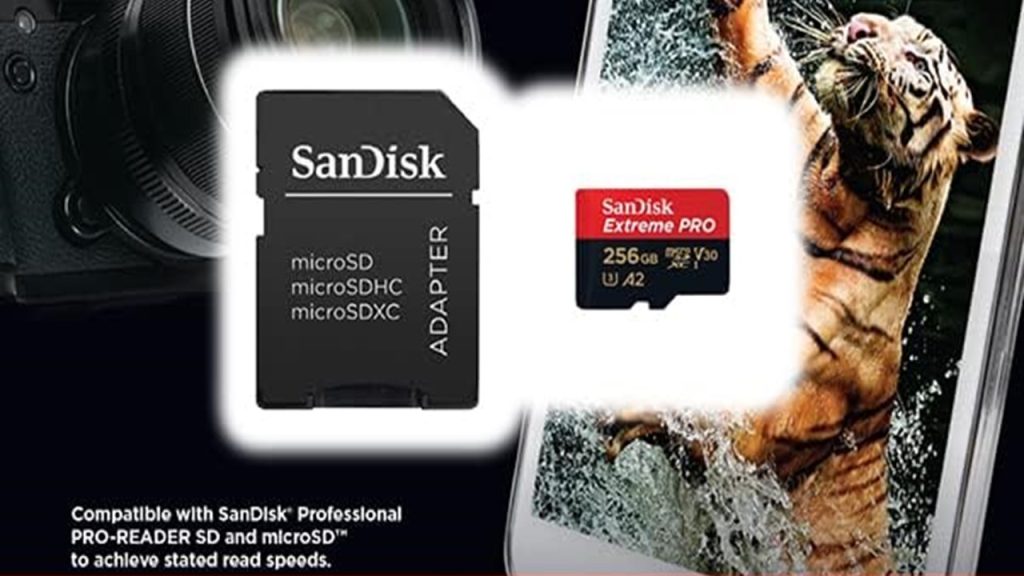
The SanDisk Extreme and Extreme Pro lines are built to withstand the elements. They offer read speeds up to 160MB and write speeds up to 60MB, perfect for 4k recording and burst shooting. They’re rugged and reliable.
Our Pick: SanDisk Extreme 256GB V30 A2 microSDXC

Recommended: SanDisk 256GB Extreme PRO microSD

Samsung Evo Select/Plus Lines
The Samsung Evo series cards are waterproof, shockproof, and even magnetic proof. They provide read speeds up to 100MB and write speeds up to 60MB. Currently, you can find some on sale.
Deal Alert: Samsung EVO Select 256GB V30 A2 microSDXC

Inserting And Ejecting SD Cards
Gone are the days of fumbling behind the drone’s right leg for the SD card slot. The Air 3’s slot is now conveniently located at the rear, beneath the battery. It’s a game-changer for quick card swaps.
Air 3
To insert an SD card into the Air 3:
- Pull the rear port cover down and to the right (housing the USB-C and SD card slots).
- With the Air 3 powered down, insert the SD card with the pins facing upward until it clicks into place.
- Close the rear port cover.
DJI RC 2
The DJI RC 2 also has an SD card slot. No more fold-down covers to deal with. Just push the SD card into the slot on the left until it clicks. A tip: these slots are spring-loaded, so be cautious when inserting the cards to avoid any launching mishaps.
Formatting SD Cards And Internal Storage
Whether you’re using the DJI RC 2 or the RC-N2 remote controller, formatting SD cards and internal storage is a breeze within the DJI Fly app. Here’s how:
Air 3
- Power on both the Air 3 and your current RC.
- In the DJI Fly app, head to your settings and locate the CAMERA tab.
- Under storage, press format. You can choose to format either the SD card or Internal Storage. Select SD Card and press Format.
For formatting the internal storage, simply select Internal Storage at the Select location to format screen.
DJI RC 2
Formatting the DJI RC 2’s SD card and internal storage is just as easy:
- Pull down the DJI RC 2’s notification screen.
- Press the settings/options gear in the upper right-hand corner of the screen.
- Tap STORAGE.
- Under Portable Storage, you’ll see your SD card’s name. Tap on it.
- Press Format. Choose to format the SD card or Cancel as per your preference.
Formatting the internal storage of the DJI RC 2 follows a similar process, but you’ll select Device Storage instead of Portable Storage.
And there you have it, your ultimate guide to SD cards for the Air 3 and DJI RC 2. Make sure to pick the right one, pop it in like a pro, and format it effortlessly. Happy flying, fellow drone enthusiasts!